Parental control · Windows 10/11 (64-bit)

Keep kids off the wrong apps and sites on their Windows PC.

Your child gets around the limits on their phone by using the family laptop. HOTS Hosts blocks TikTok, YouTube, adult sites, games and more on the PC itself, so there is nothing to change on your router.

It is free, open source, and needs no account. You choose what to block, then lock the settings so they stay that way.
Free · GPLv3 No router changes No account, no ads
Windows will ask to confirm administrator rights on first run
# what it does

What you can block, and how it stays blocked

You do not need to know what a "hosts file" is. Under the hood the app tells Windows that certain addresses lead nowhere, which is why it works in every browser and app on that PC.

Sites and apps by category

Switch on a category and its known addresses stop loading on this PC.

  • 15 categories under Popular services block: Twitter/X, Instagram, YouTube, Facebook, WhatsApp, TikTok, Twitch, Snapchat, Pinterest, Reddit, adult content, games, torrents, dating sites, random video chat
  • Block your own domains: add any website by name for anything specific to your family
  • App blocking: pick an installed game or program (or browse to its file) and it can no longer start

Safer DNS in one click

DNS is the internet's phone book. A family-safe one filters more than any list can.

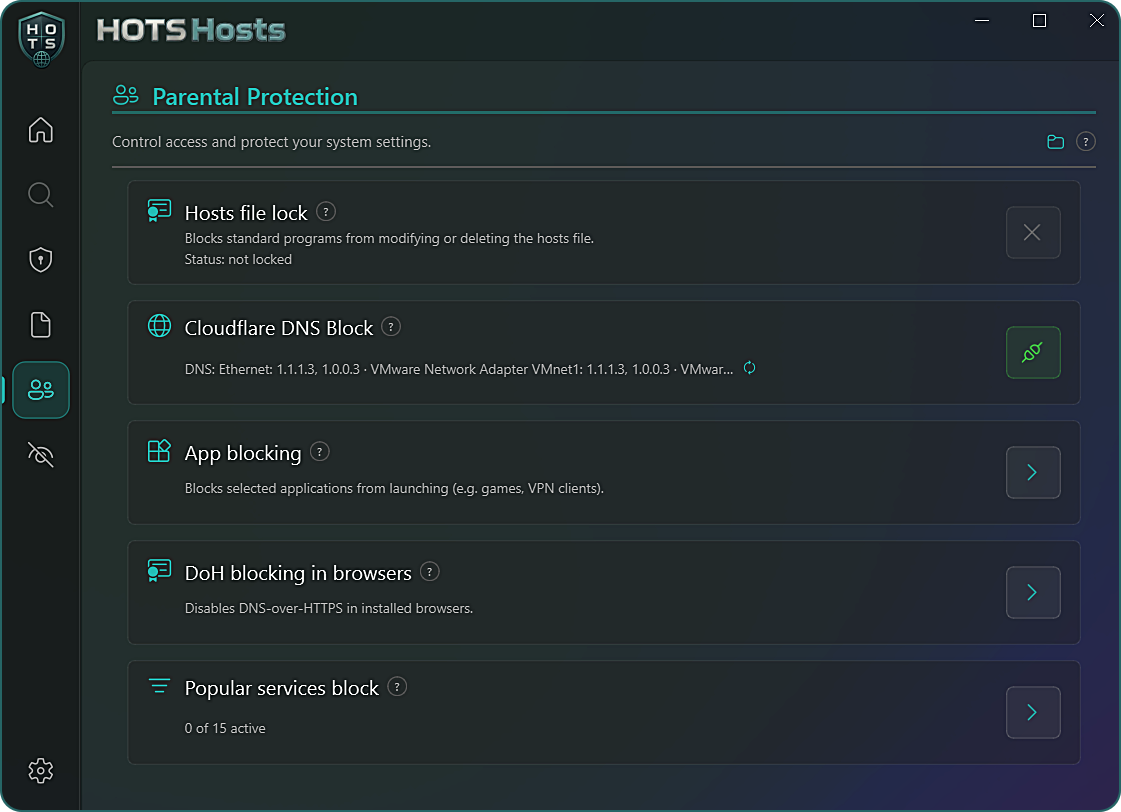
  • Cloudflare DNS Block (Cloudflare Family): blocks adult content and known malware and phishing sites for every program and browser on the PC
  • When it is on, the separate adult-sites blocklist is switched off, because the DNS filter already covers it

Closing the usual workarounds

Kids find the same few tricks. These switches close them.

  • Block known VPN apps: one click stops 10 popular VPN apps (NordVPN, ExpressVPN, Proton VPN, Surfshark and others) from starting
  • DoH blocking in browsers: Chrome, Edge, Brave and Firefox can quietly ignore the blocklist through their own encrypted DNS. This turns that off (restart the browser afterwards)
  • Block System Restore tool (on the Privacy page): stops the System Restore wizard from opening, so the blocks cannot be rolled back. Restore points are still created

Locking it down

A filter is only useful if it stays on.

  • Hosts file lock: standard programs cannot modify or delete the blocklist
  • Password (Options menu): required to open the app, and to uninstall it
# setup

Set it up in about ten minutes

  • 1Install HOTS Hosts on the PC you want to protect and approve the administrator prompt.
  • 2Open the Parental Protection page (the two-people icon in the side menu).
  • 3Under Popular services block, switch on the categories you want. Add your own sites with Block your own domains.
  • 4Turn on Cloudflare DNS Block for the extra layer, then press Lock in the Hosts file lock card.
  • 5In DoH blocking in browsers block each installed browser, and press Block known VPN apps under App blocking. Restart the browsers afterwards.
  • 6On the Privacy page press Block at Block System Restore tool. Then set a Password in the Options menu.
  • 7Give your child a standard Windows account (not an administrator one) and keep the administrator account for yourself.

Good to know

Honest limits, so nothing surprises you.

  • It protects this Windows PC only. Phones, tablets and consoles need their own controls.
  • No blocklist is 100% complete: big platforms use many changing servers. You can add your own domains any time.
  • App blocking works by program file name, so a renamed copy of a portable program is not covered, and core Windows files cannot be blocked.
  • It is built to stop everyday bypass attempts. Anyone with full administrator rights on the PC can undo it, which is why step 7 matters.
Tip

Test it yourself first: after setup, try opening a blocked site from your child's account.

# faq

Questions parents ask

Do I need to change anything on my router?
No. Everything is set up on the Windows PC itself, in the app. That is why it works on a laptop your child also takes to school or a friend's house.
Can my child just turn it off?
Not casually. The hosts file can be locked so other programs cannot change the blocklists, the app can require a password to open or uninstall it, and separate switches close the usual workarounds (VPN apps, browser secure DNS, the System Restore wizard). Your child should use a standard Windows account without administrator rights. Someone with full administrator access can undo any protection, so this is meant to stop everyday bypass attempts, not a determined expert.
Does it work on phones and tablets?
No. It protects the Windows PC it is installed on. Phones, tablets and consoles need their own controls, and it cannot filter traffic sent through a VPN service the child sets up on another device.
Will it block everything on TikTok or YouTube?
It blocks a large, regularly updated list of their domains, but big platforms use many changing servers, so no list is perfect at every moment. You can add your own domains at any time, and lists are refreshed with each release.
Is it really free? Does it collect anything?
Yes, free and open source (GPLv3). No account, no ads, no telemetry. The only network requests are ones you trigger yourself, like checking for an update.
Windows shows a warning when I run the installer. Is it safe?
It is a small independent project without a paid code-signing certificate yet, so Windows SmartScreen can show a warning for new files. Click More info, then Run anyway. The full source code is public on GitHub if you want to check it first.

Set it up once, then stop worrying.

Free, open source, no account. Want the privacy tools too? See everything HOTS Hosts can do. Prefer something smaller? Try HOTS Hosts Lite.