Windows privacy · Windows 10/11 (64-bit)

Stop Windows from watching what you do.

By default Windows sends diagnostic data to Microsoft, records your activity, and shows personalised ads. HOTS Hosts lets you turn that off in one place, without digging through Settings, services and scheduled tasks.

Pick a protection level, read what each setting does in plain words, and undo any of it whenever you like.
Free · GPLv3 37 settings, 4 levels No account, no ads
Windows will ask to confirm administrator rights on first run
# what it turns off

Four levels, from gentle to strict

Each level is a preset that turns off Windows services, scheduled tasks and settings responsible for tracking. Every level is escalating, and every item can be reviewed and switched individually.

Basic (13 settings)

The safe starting point. Stops the main data collection and advertising.

  • Diagnostic data and the telemetry service that sends it to Microsoft
  • Microsoft experiments, feedback pop-ups and the Customer Experience Improvement Program
  • Personalised ads and tips, the advertising ID, and apps promoted in the Start menu
  • Bing results in Start search and web suggestions in the taskbar search box
  • Sharing update files with other PCs over the internet, and Windows Recall

Medium (12 settings)

Shuts down the background tasks that gather and upload data about your PC.

  • Hardware and software compatibility data, and the device census
  • Uploads of application crash reports
  • Data about installed programs and about USB devices you plug in
  • Kernel and disk-health diagnostics, and Windows feedback prompts

Advanced (5 settings)

Turns off activity tracking. Some convenience features go with it.

  • Timeline, and the recording and cloud upload of your activity history (you lose "continue on another device")
  • The crash and blue-screen report service
  • The Program Compatibility Assistant (you lose warnings about old software)

Privacy+ (7 settings)

The strictest level: location and personalisation.

  • The Windows location service (Weather, Maps and similar apps will not find you)
  • Collection of typing and handwriting samples
  • Cross-device clipboard sync, and Find My Device reporting

Also on the Privacy page

Two extra layers on top of the levels.

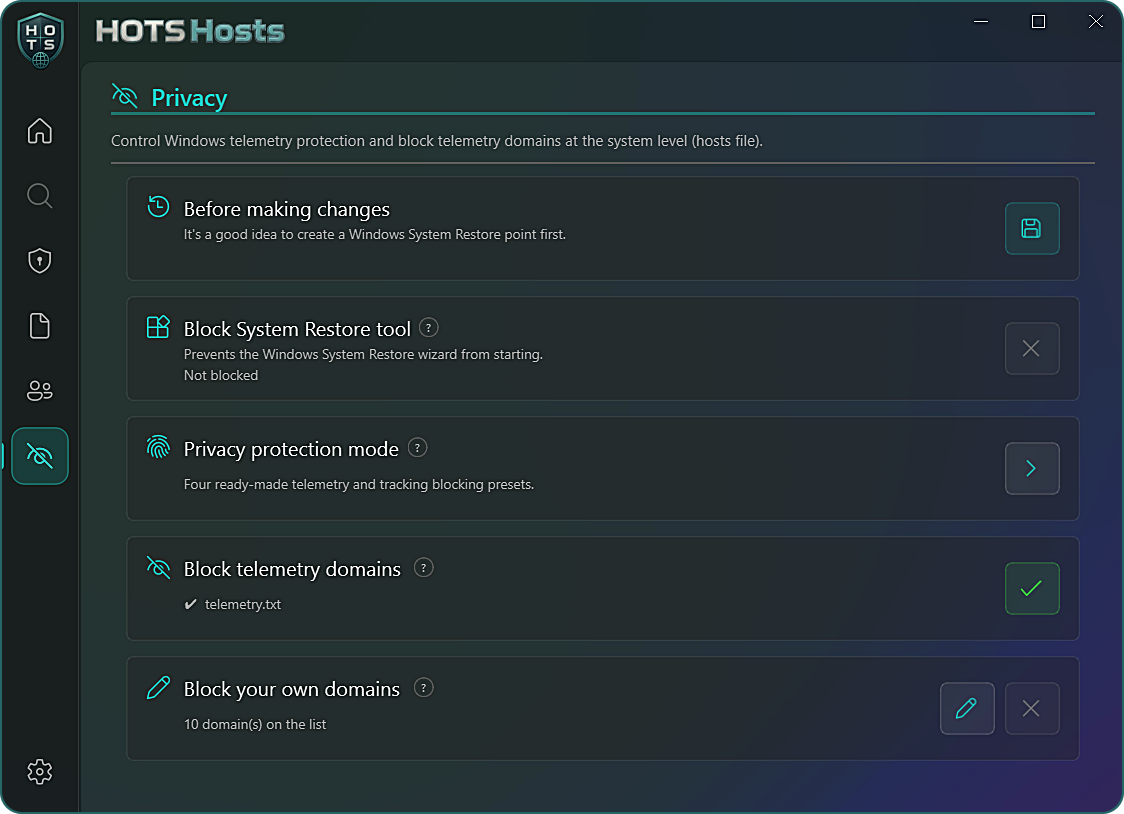
  • Block telemetry domains: a list of known Microsoft telemetry addresses is blocked at the hosts-file level, a separate mechanism from the levels above
  • Block your own domains: add any tracker or site by name

A safety net

You should not have to guess whether a change is safe.

  • One-line explanation next to every setting, in plain words
  • Restore point prompt: the page suggests creating a Windows restore point before you begin, with a button to do it
  • Change detection: if a Windows update resets part of your protection, the app notices and offers to reapply it
# setup

Set it up in about five minutes

  • 1Install HOTS Hosts and approve the administrator prompt. Privacy changes need administrator rights.
  • 2Open the Privacy page from the side menu.
  • 3Create a restore point using the button in the banner at the top, before making changes.
  • 4Start with Basic. Each level card shows how many of its settings are active. Use the gear icon to see and tick individual items, then press Apply selection.
  • 5Move up a level only if you want to. Read the one-line explanation of each item first, especially in Advanced and Privacy+.
  • 6Optionally turn on Block telemetry domains for the extra layer.

Good to know

Honest limits, so nothing surprises you.

  • It controls Windows itself. Other programs, websites and your browser have their own tracking, which this does not touch.
  • Higher levels switch off features that depend on the collected data. The app lists what you lose before you apply.
  • Some settings do not exist on every Windows edition. They are shown as unavailable and skipped.
  • Windows allows one restore point per 24 hours by default. The app can lift that limit, which is a permanent system-wide change.
Tip

Start with Basic and use your PC for a few days before moving up.

# faq

Questions people ask

Is it safe? Will it break Windows?
Every setting is explained in plain words inside the app, and the app suggests creating a Windows restore point before you change anything. The Basic level is conservative. The higher levels switch off a few features you may use (crash reports, Timeline, location), and the app tells you which.
Can I undo it?
Yes. Each level can be switched off again, and you can open a level and turn individual items on or off. A restore point gives you one more way back.
Does it stop Windows Update?
No. None of the settings turn off Windows Update itself. The update-sharing setting only stops your PC from sharing update files with other PCs over the internet.
Does it block Windows Recall?
Yes, Recall is one of the Basic-level settings. Recall only exists on some Windows 11 PCs. Settings that do not exist on your version of Windows are shown as unavailable and skipped.
What if Windows turns things back on after an update?
Big updates sometimes reset privacy settings. HOTS Hosts notices when part of your protection has been reset and offers to reapply it.
Is it free? Does it collect anything?
Yes, free and open source (GPLv3). No account, no ads, no telemetry of its own. The only network requests are ones you trigger yourself, like checking for an update. Windows may show a SmartScreen warning for the installer because it is a small independent project without a paid code-signing certificate yet. Click More info, then Run anyway. The full source is public on GitHub.

Take back your PC's privacy.

Free, open source, no account. Setting this up for a family PC? See the parental controls. Want the full picture? Everything HOTS Hosts can do.